One last old tutorial relocation…
Hi Everybody,
I put together a quick tutorial about using a very useful script by Steven T. L. Roselle, tied with another simple trick I used anytime I needed to quickly attach extra objects or
details to a deformed or bound nurb model.
I am confident this is a basic tutorial for many users, but I trust that it will really help those of you in sharp deadlines…
Steven’s script allows you to get a curve with construction history by selecting the edges of a polygonal model…..
I have actually seen an update that will allow you to get curves from poly faces somewhere, as well.
This is the link to Roselle’s script:
http://www.aliaswavefront.com/en/Community/Download/library/maya/scripts/modeling/crvOnPoly.mel
The trick I use is to attach models to a path curve derived by extracting curves with construction history from deforming nurb models.
Very simple and useful expecially if you forget to bind obj detail, like some buttons, to a deforming character,
or if you want to avoid some tedious cv weighting for small added elements, while in a deadline crunch.
Thanks to Steven now we can use the same trick for poly as well…..here we go:
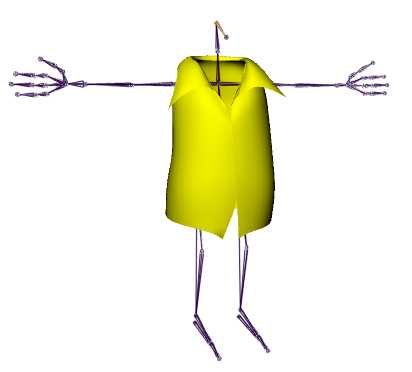
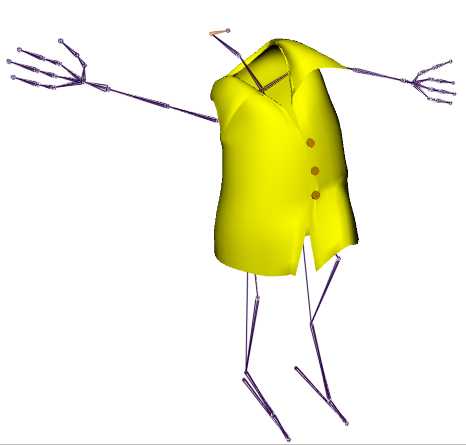
1) Let’s say we have our poly shirt already bound to a skeleton and ready to be rendered, and now we want to add some buttons to it…..
…..but without having to weight or to fix them to the point that they will not go through the shirt.
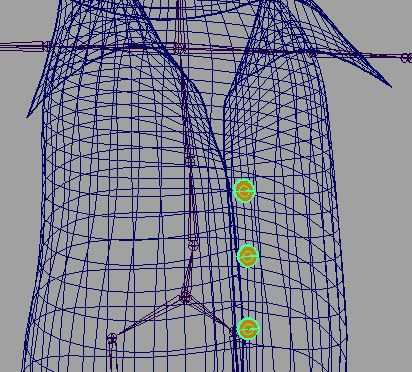
2) First we want to position the buttons at the desired heights and make sure their pivot points are moved to touch the closest poly edge on the shirt.
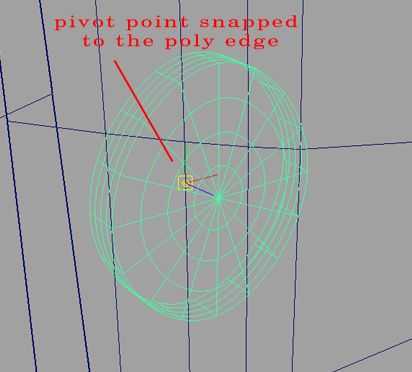
(Note: to edit the pivot point’s position, select the object you want to adjust, press the insert button on your keyboard, move the pivot to a new location and press
insert again to go back to your model selection. You can use the Snap to Curve tool to move the pivot exactly on the edge)
3) Now we need to create the curves on the shirt to be used as paths for the buttons. Select the closets edge to the button you want to add to the shirt.
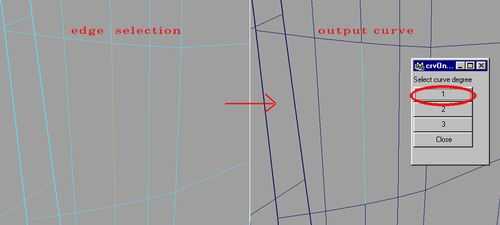
Run Steven’s script (crvOnPoly.mel) and select a 1 degree curve from the window that pops up.
You now have a curve that will follow the deformation of the shirt at will.
4) Select the button, select the curve and call the Animate/Paths/Attach to Paths options menu.
(Note: option menus are available by selecting the dark box at the end of a command line)
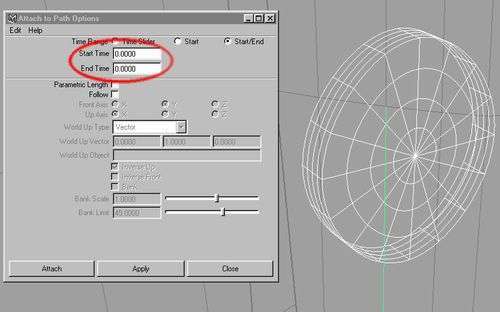
Set Time Range to Start/End, Start Time and End Time to zero, and leave the rest off.
You have just attached your button at the beginning of the selected curve path.
5) Last thing to do is to move the button back at the desired position.
Select the button, open the Graph Editor and press F to center the keyframe window onto the only 3 keyframes available: X, Y and Z position of the button.
Select the 3 keyframes, hold the shift key on your keyboard and move the mouse up and down.
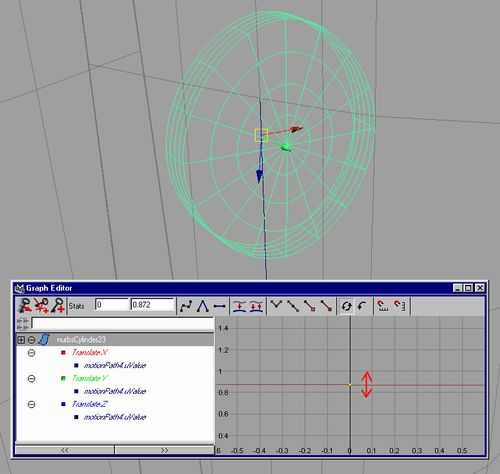
You will see the button react to the action and move along the path. Adjust the position
of the button by eye and …
…. now you got your button attached to your poly mesh without having to adjust its weight…..
6) Last considerations.
If you find the buttons are still going through your shirt in some specific poses, you have two options:
Adjust the pivot point, as shown before, to move a button further away from the shirt.
Or, you can add some Set Driven Keys to a button to rotate or move it away from the shirt just when the skeleton is in the pose that is creating the trouble.
But even in those cases, I honestly did not have very many situations where I had to go to a set driven key adjustment at all.
Hope you enjoy this; and thanks to Steven T. L. Roselle for the original script.